How to Translate Speaker Notes in Google Slides: A Step-by-Step Guide
The Forgotten Part of the Presentation
You've spent hours translating your slides, fixing the layout, and checking the fonts. But you step up to present, look at your screen, and realize: your speaker notes are still in English.
Translating speaker notes is often overlooked, but it's critical for:
- Presenting in a second language.
- Sharing decks with international colleagues who need the context.
- Creating accessible presentations.
Method 1: The Manual Way (Free but Slow)
Google Slides doesn't have a built-in feature to translate notes.
- Open your presentation.
- Click into the speaker notes section at the bottom.
- Highlight the text and copy (Ctrl+C).
- Open Google Translate in a new tab.
- Paste the text, translate it, and copy the result.
- Go back to your slide and paste it (Ctrl+V).
- Repeat for every single slide.
Verdict: Fine for 3 slides. Painful for 30.
Method 2: The Automated Way (Slide Buddy)
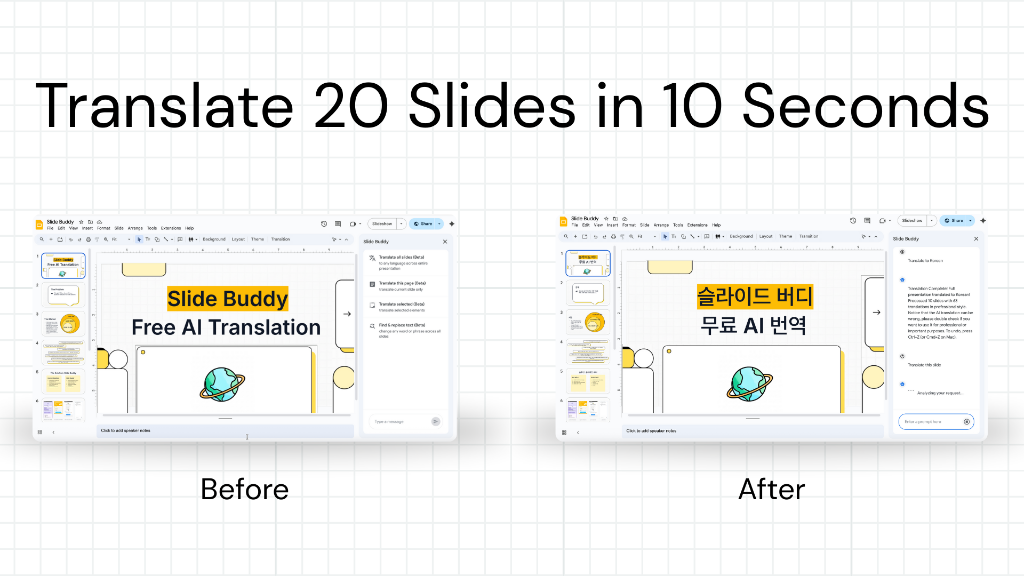
Slide Buddy isn't just for the text on your slides; it handles the speaker notes too. Powered by Gemini AI, it translates both slide content and speaker notes in one pass, preserving all formatting.
How to do it:
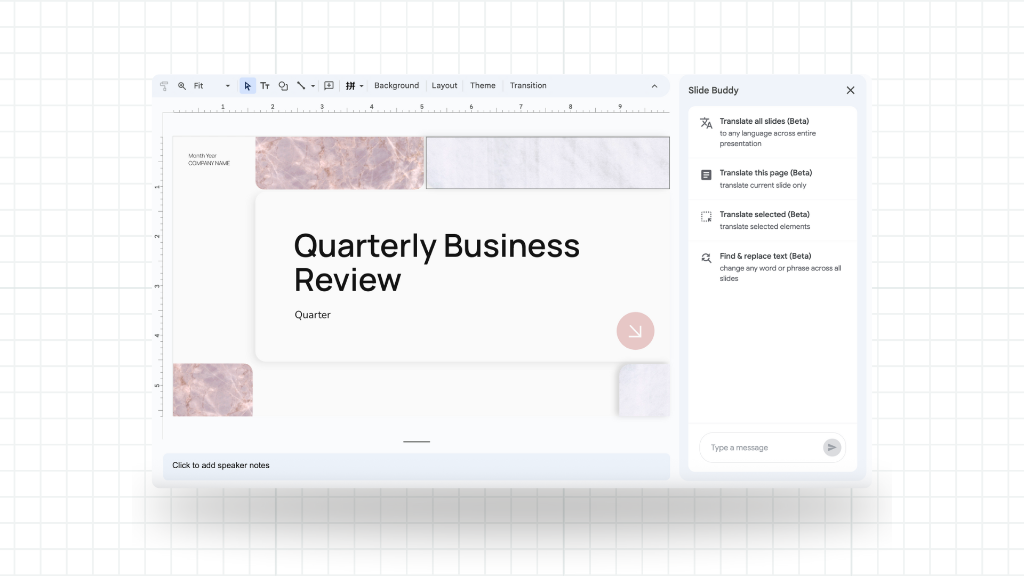
Open Slide Buddy.
Select your target language — Slide Buddy supports 100+ languages.
Check the "Translate Speaker Notes" option.
Click Translate.
Slide Buddy will process the visible slide content AND the hidden speaker notes simultaneously, keeping everything in sync.
Why Translate Speaker Notes?
- Confidence: Presenting is stressful. Having notes in your native language reduces cognitive load.
- Collaboration: Your notes often contain the "why" behind the slide. Translating them helps remote teams understand your thought process.
Conclusion
Don't leave your speaker notes behind. Whether you use the manual copy-paste method or the one-click efficiency of Slide Buddy, ensuring your notes are translated is a pro move for any international presentation.