Translate Google Slides: 4 Free Methods to Translate Your Entire Deck
Google Slides doesn't have a built-in translation feature like Google Docs does. If you need to translate a presentation into another language, you'll need a workaround — and some methods are much faster than others.
In this guide, I'll walk you through four ways to translate Google Slides, from manual copy-paste to AI-powered add-ons that do it in seconds. I'll compare each method so you can pick the right one — whether you're translating a 3-slide classroom handout or a 50-slide business deck.
Quick Answer: How to Translate Google Slides
Google Slides has no built-in translation feature, but you can translate entire decks using a free add-on. The fastest method:
- Open your Google Slides presentation
- Go to Extensions → Add-ons → Get add-ons
- Search for and install Slide Buddy (free)
- Go to Extensions → Slide Buddy → Start
- Select All Slides, pick your target language, and click Translate
A 20-slide deck translates in about 30 seconds. Formatting, fonts, and speaker notes are all preserved. Read on to compare all 4 methods, or skip to Method 3 (Slide Buddy).
Method 1: Manual Translation with Google Translate (Free, Slow)
This is the no-tools approach. It works for small decks but gets painful fast.
Open Google Translate in a separate tab
Go to translate.google.com and set your source and target languages.
Copy text from each text box
Click a text box in your slide, select all text (Ctrl+A), copy it, and paste it into Google Translate.
Paste the translation back
Copy the translated text and paste it back into the slide. Repeat for every text box on every slide.
Heads up: This method breaks formatting. When you paste translated text back, you often lose font sizes, colors, bold/italic styling, and text alignment. For a 20-slide deck, expect to spend 30–60 minutes fixing layouts afterward. It also does not handle speaker notes.
Method 2: Translation Add-ons from the Marketplace (Free/Paid)
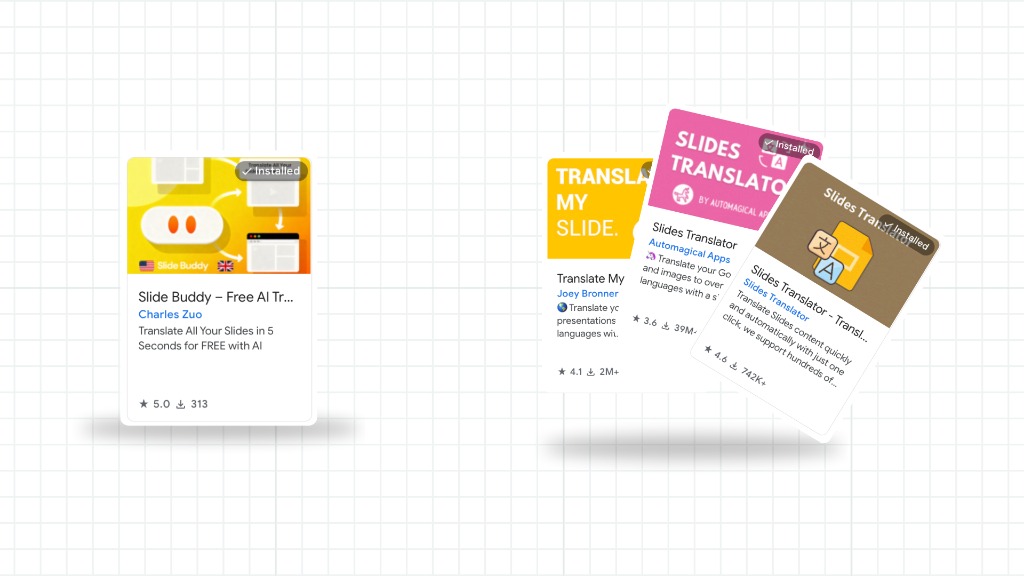
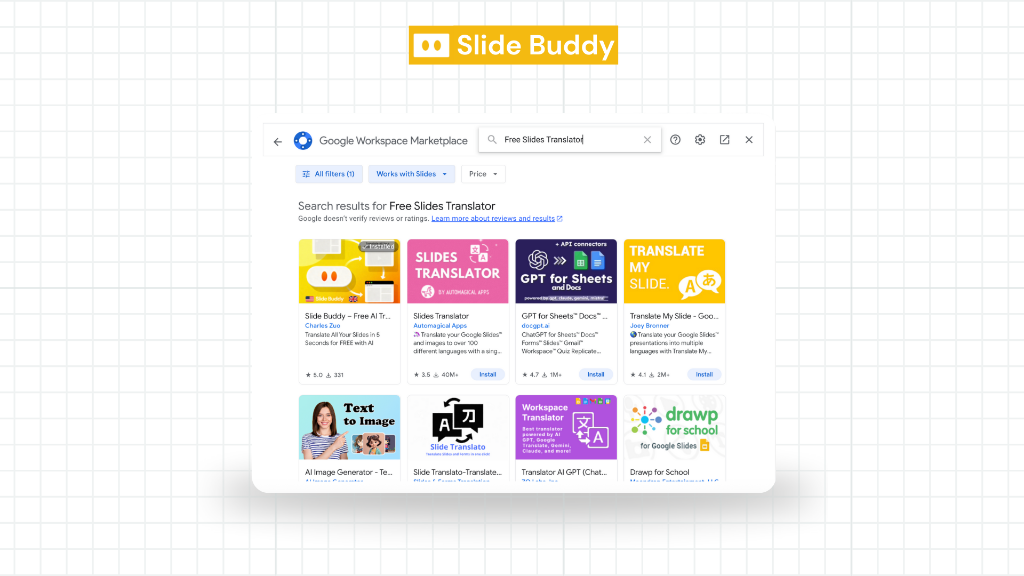
Google Workspace Marketplace has several translation add-ons you can install directly into Google Slides. The most popular ones are Slides Translator (by Automagical Apps) and Translate My Slide.
Open the Add-ons menu
In Google Slides, go to Extensions > Add-ons > Get add-ons.
Search for a translator
Search "translate" in the Marketplace. You will see options like Slides Translator and Translate My Slide.
Install and grant permissions
Click Install, review the permissions, and authorize. For a detailed walkthrough, see our installation guide.
Translate your slides
Open the add-on from Extensions, select your target language, and run the translation.
These add-ons work well but have trade-offs. Slides Translator uses Google Translate's API, so quality is standard machine translation. Some charge for premium features. For a full breakdown, see our comparison of the best free Google Slides translation extensions.
Method 3: Slide Buddy — Free AI Translation (Recommended)
Slide Buddy is a free Google Slides add-on that uses AI (Google Gemini) to translate presentations. Unlike basic machine translation, it produces context-aware results — meaning it understands slide content as a whole rather than translating word-by-word.
Install Slide Buddy (free)
Visit the Google Workspace Marketplace listing and click Install. No account creation needed — it works with your existing Google account.
Open it in your presentation
Go to Extensions > Slide Buddy > Start. A sidebar will appear on the right.
Choose what to translate
Select "Current Slide" for one slide, or "All Slides" to translate the entire deck. Slide Buddy also translates speaker notes automatically.
Pick your target language
Choose from 100+ languages. For language-specific walkthroughs, see our dedicated guides: translate to Spanish, translate to French, or translate to Chinese. For other languages, see our general guide to translating Google Slides, and for RTL languages check our RTL translation guide.
Click Translate
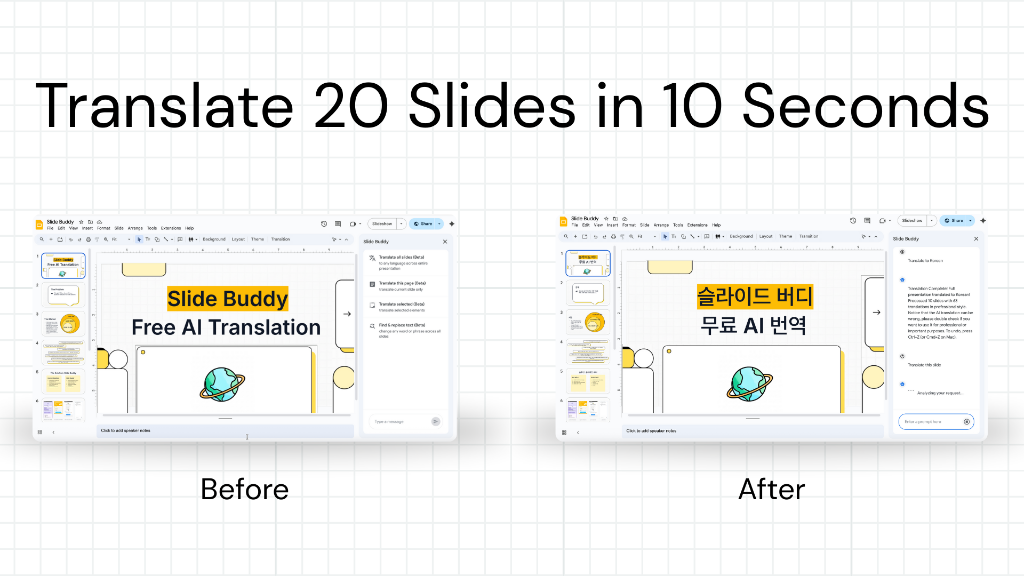
The AI processes your slides in seconds. Text is translated in place — fonts, colors, sizes, and positioning are all preserved. A 20-slide deck typically takes under 30 seconds.
Pro tip: Want to keep the original and have a translated copy? Duplicate first (File > Make a copy), then translate the copy.
Method 4: Export to PowerPoint, Translate There
If you already use Microsoft PowerPoint, you can export your Google Slides deck and use PowerPoint's built-in Translate feature.
Download as .pptx
In Google Slides: File > Download > Microsoft PowerPoint (.pptx).
Open in PowerPoint
Open in Microsoft PowerPoint desktop app (the web version has limited translation).
Use the Translate feature
Review > Translate. Select your target language. Note: PowerPoint translates one text box at a time.
Re-upload to Google Slides (optional)
Upload the .pptx back to Google Drive. Some formatting may shift during the round-trip.
Limitation: Requires a Microsoft 365 subscription. The export/reimport process can cause formatting issues with custom fonts, animations, and transitions.
Comparison: All 4 Methods Side by Side
| Feature | Manual | Marketplace Add-ons | Slide Buddy (AI) | PowerPoint Export |
|---|---|---|---|---|
| Cost | Free | Free / Paid tiers | Free | Requires M365 |
| Preserves formatting | No | Mostly | Yes | Partial |
| Bulk translate | No | Some | All slides at once | One box at a time |
| Speaker notes | No | Rarely | Yes | No |
| Translation quality | Machine (Google) | Machine (Google/DeepL) | AI (Gemini) | Machine (Microsoft) |
| Time (20-slide deck) | 30–60 min | 2–5 min | ~30 sec | 10–20 min |
Tips for Better Slide Translations
Always duplicate first. Make a copy of your deck before translating so you keep the original. In Google Slides: File > Make a copy.
Keep text short on slides. Translated text is often 20–40% longer than the original (especially English to German or French). Short bullet points translate better than long paragraphs.
Review after translating. AI translations are very good but not perfect. Always proofread technical terms, brand names, and idiomatic expressions.
Use speaker notes translation for presenter decks. If you present in the target language, make sure your notes are translated too — Slide Buddy handles this automatically.
Check RTL languages carefully. Arabic, Hebrew, and Urdu need right-to-left text direction. See our RTL guide.
Frequently Asked Questions
Is there a way to translate a Google Slides presentation?
Yes. You can use add-ons like Slide Buddy or Slides Translator (found under Extensions > Add-ons), manually copy text into Google Translate, or export to PowerPoint. Add-ons are fastest because they translate text in place without breaking formatting.
Does Google Slides have a built-in translation feature?
No. Unlike Google Docs (which has Tools > Translate document), Google Slides has no native translation. You need a third-party add-on or a manual method.
How do I translate a Google Slide to Spanish?
Install Slide Buddy from the Google Workspace Marketplace. Open your presentation, go to Extensions > Slide Buddy > Start, select All Slides, choose Spanish, and click Translate. Your entire deck translates in seconds.
Can I translate Google Slides for free?
Yes. Slide Buddy is completely free with no usage limits. You can also use Google Translate manually (free but slow) or the free tier of Slides Translator. No credit card or sign-up required.
Does translating mess up my slide formatting?
It depends on the method. Manual copy-paste breaks formatting. Add-ons like Slide Buddy translate text in place, preserving fonts, colors, sizes, and positioning. The PowerPoint export method may cause some formatting shifts.
Can I translate speaker notes in Google Slides?
Most add-ons only translate slide content. Slide Buddy is one of the few that translates speaker notes along with slide text. See our speaker notes translation guide.
Can I translate into multiple languages at once?
Not simultaneously, but you can create multiple versions. Duplicate your deck (File > Make a copy), then translate each copy into a different language. Each translation takes just seconds with Slide Buddy.
How do I translate Google Slides to English?
Install a free add-on like Slide Buddy from the Google Workspace Marketplace. Open your non-English presentation, go to Extensions > Slide Buddy > Start, select All Slides, choose English as the target language, and click Translate. The entire deck — including speaker notes — will be translated to English in seconds.
Is there a way to translate Google Slides without an add-on?
Yes, but it's slow. You can manually copy text from each slide, paste it into Google Translate, then paste the translation back. Another option is exporting to PowerPoint (.pptx) and using Microsoft's built-in translator. Both methods are time-consuming and can break formatting — add-ons like Slide Buddy are much faster.
Ready to translate your slides?
Join 9,000+ users who use Slide Buddy to translate presentations in seconds. Free, no sign-up required.
Install Slide Buddy for FreeHave more questions about translating Google Slides? Check our comprehensive Google Slides Translation FAQ — 26 expert answers covering setup, formatting, languages, and troubleshooting.